MyFS Solution Centre gives our customers access to their account information any time of the day. You can access myFS from any web browser or with the convenient, smart phone app.
If you already have an account and are experiencing problems logging in, it is recommended to reset your password. Password reset instructions can be found here. For any issues getting access or logging in, please contact us.
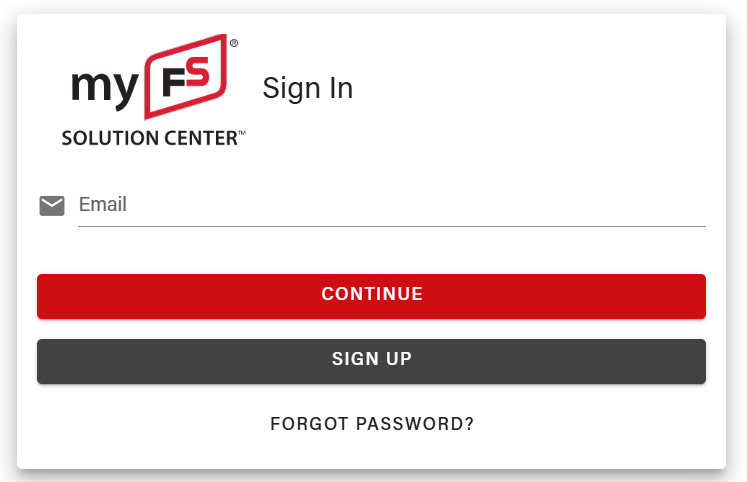
Enter your email address and select the Sign up button when finished.
Step 3
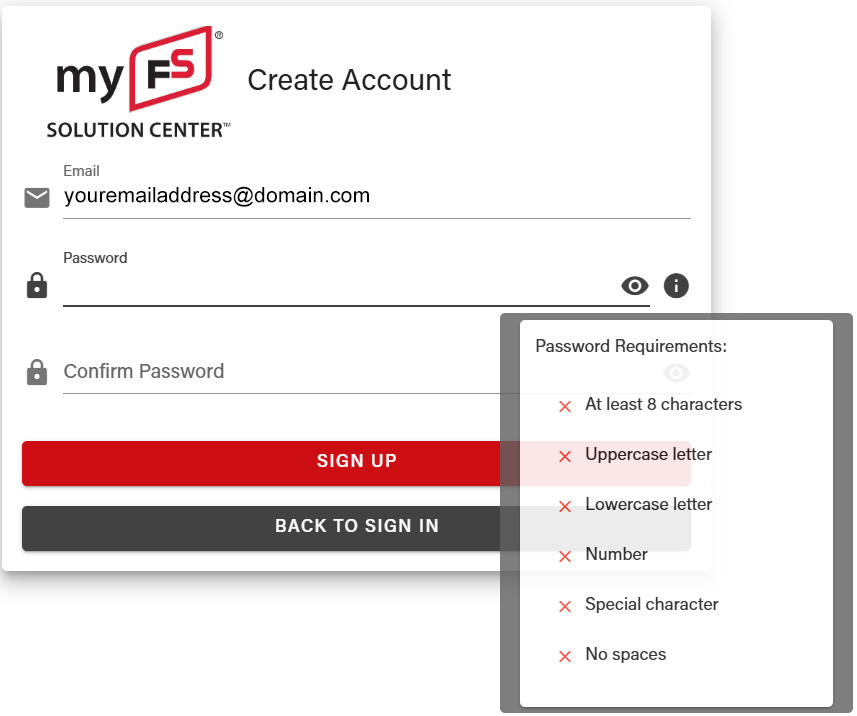
Create a password and follow the prompted instructions on how to create a secure password.
Step 4
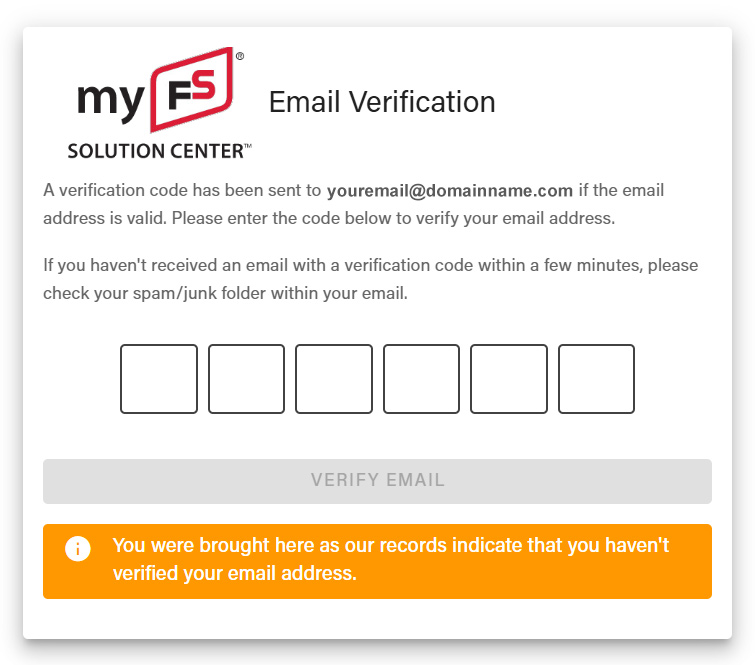
You will receive a 6 digit verification code in the email account you used to sign up with (be sure to check your spam bin folders if it doesn’t appear in your inbox). Enter the code, and select “Verify Email”
Step 5
You are now ready to login to myFS and fill in your profile information.
Step 6
When you login, you will get the message that no approved patron accounts are associated with your myFS account. Click the Edit Your FS Account Information link.
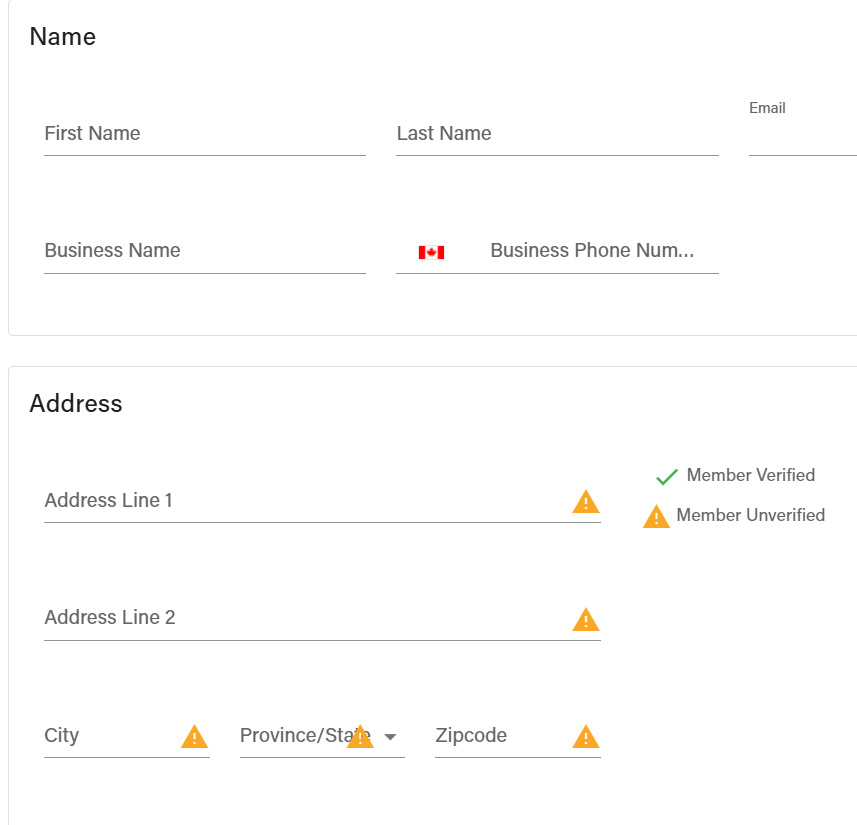
Please fill out the form completely – name, phone number and address. This helps us verify the user and approve it quicker.
Step 7
At the bottom of the page is a Patron/Grower IDs section. Click in the FS Company dropdown and select County Farm Centre.
Enter your account number into the Patron/Grower ID box. Click the Add Patron/Grower ID button.
**The Patron ID must be 6-digits or the account will not be linked properly.
If you have any additional accounts to add for County Farm Centre, add them now.
Click the green Request Update button at the bottom when done to save your changes.